Most mandatory fees are set by a jurisdiction, not by you: the amount, the wording on the receipt, whether it's taxed, and where it applies are all decided somewhere else. Fee templates carry those facts into Magical Fees so you don't have to look them up. Pick the template, confirm which of your products it covers, and activate it.
What a template gives you
Every template is built from the program's own published rules and re-checked against the source. When you open one, the amount, the fee title the jurisdiction prescribes for the receipt, the tax setting, and the conditions (for example, only orders delivered to California) are already set. Anything the template decided is marked in the fee's formula, so you can always tell what came from the template and what you changed.
There are 34 templates today:
- Container deposits for California (CRV), Connecticut, Iowa, Maine, Michigan, Oregon, and Vermont; every Canadian province and territory with a program (Alberta, British Columbia, Manitoba, New Brunswick, Newfoundland and Labrador, Northwest Territories, Nova Scotia, Ontario, Prince Edward Island, Quebec); Germany (Pfand); Ireland (Re-turn); Poland; and Singapore, plus a generic Container deposit you set the amount on.
- Mattress recycling for California, Oregon, and Rhode Island.
- Battery fees for California (lead-acid, and the covered battery-embedded fee).
- US tariffs: a generic import tariff pass-through, and tariffs on imports from China, Canada, and Mexico, plus the Section 338 tariff on Canadian autos, alcohol, and dairy.
- Processing fees: a credit card processing fee that only applies when the customer pays by card, and a flat processing fee on every order.
If the fee you need isn't there, search for it anyway. The empty result offers request a template, which sends us the fee you're setting up.
Step 1: Open the catalog
- In the Magical Fees app, click Add fee.
- The catalog opens with Popular fees at the top and the rest grouped by fee type. Search by the program's official name, the wording it requires on receipts, or a plain description like "mattress".
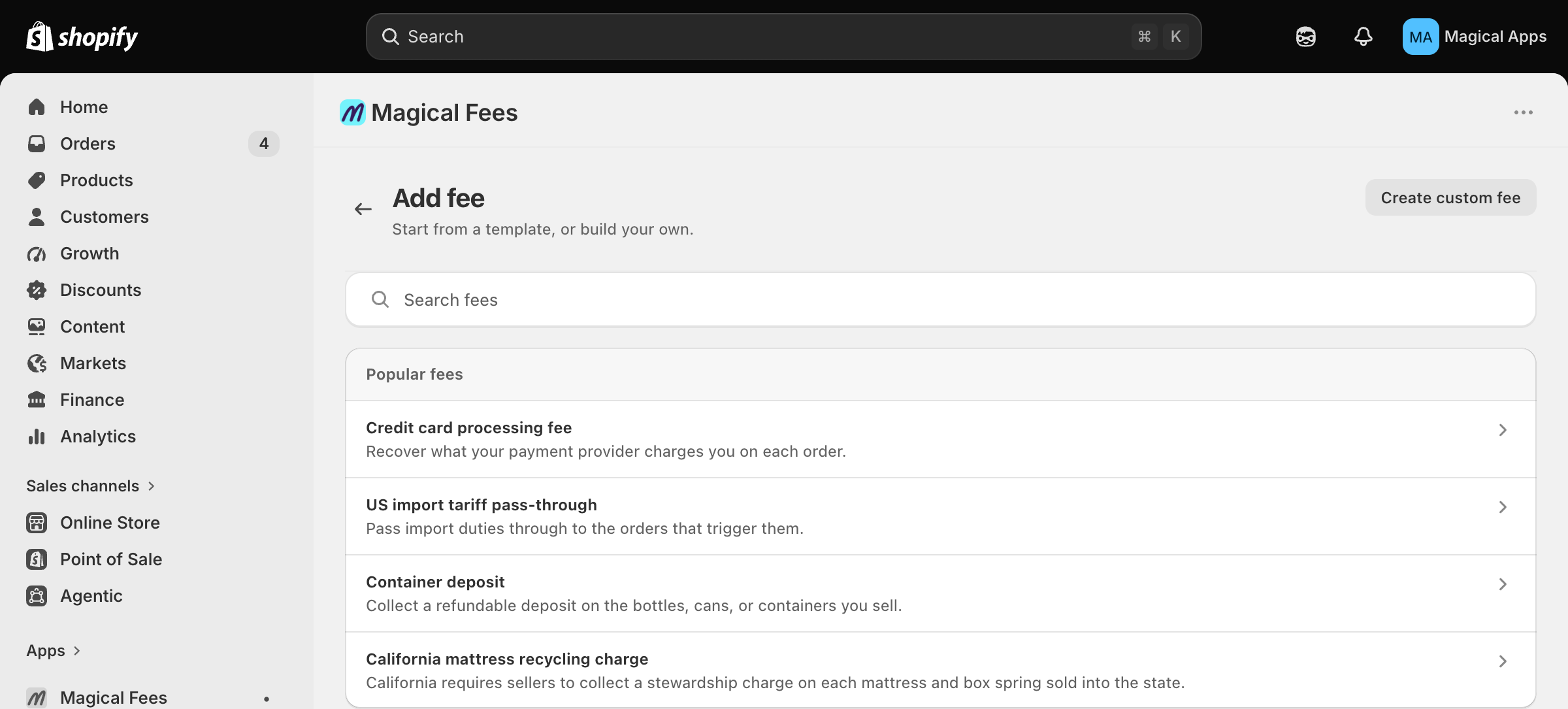
Want to build a fee by hand instead? Click Create custom fee, choose a method in the Select a Method window, and the full editor opens. See How to create your first fee.
Step 2: Preview the template
Click a template to open its preview. The What it does card lists the facts as sentences: what it charges, what it applies to, and where it works. Read it the way your customer would read the receipt.
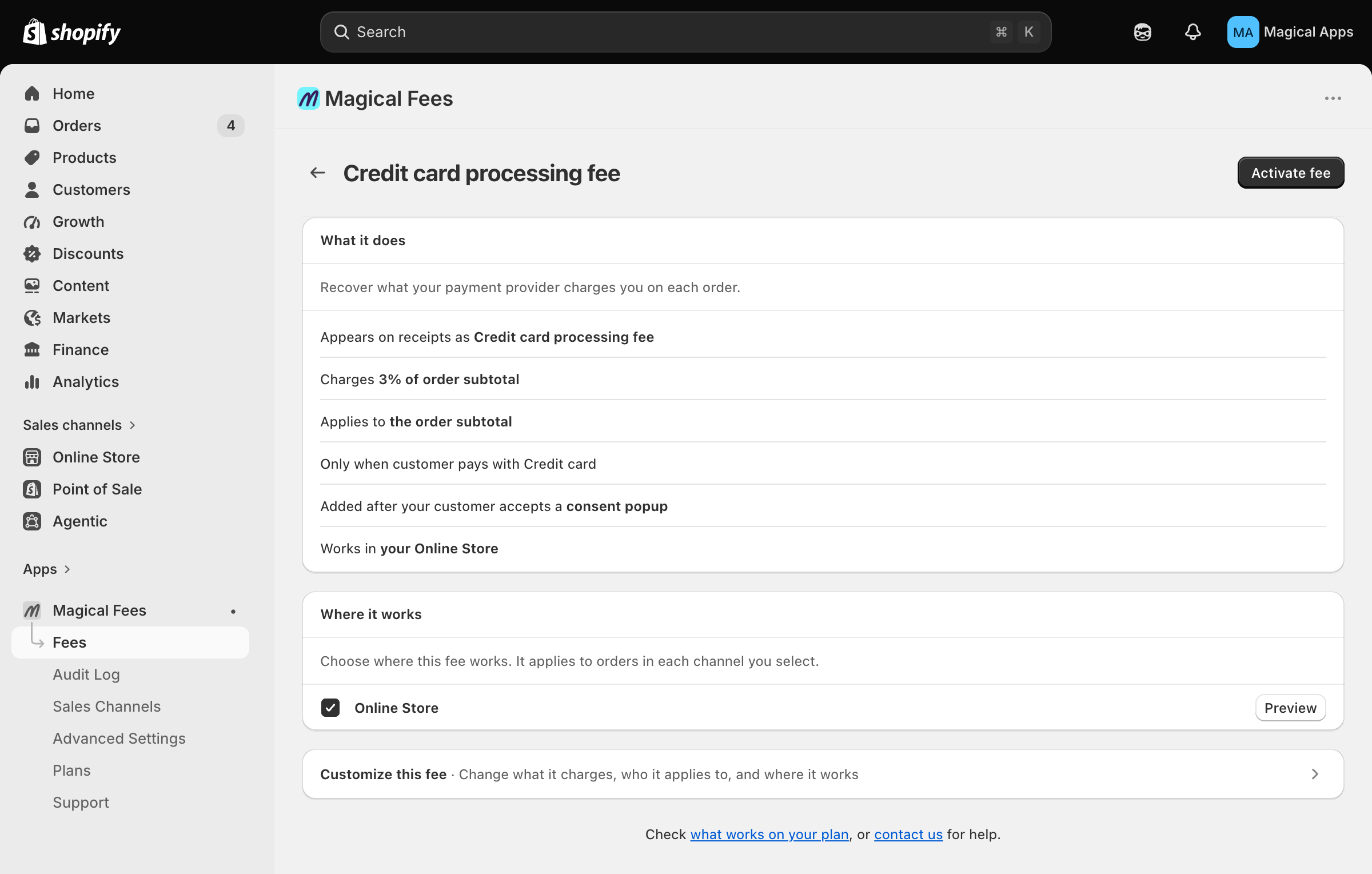
Some templates need one decision from you before they can be activated, because the jurisdiction doesn't know your catalog:
- Product templates (mattress, battery, eco fees) show Selection required. Click Select your mattress collection (or battery, and so on) and pick the collection that holds those products.
- Deposit templates ask for option values instead of a collection, because deposits are charged per container. Click Select option values and check every variant option value for one pack size (for example "4-pack" and "4 pack"). Then set the amount in the Charges row to match that pack size. Sell more than one pack size? Activate the template once per size.
- Tariff templates ask which products carry the tariff. The delivery country is already set.
If a template leaves a setting wide open, such as applying to every product or every order, it asks you to confirm before Activate unlocks. Click Yes, keep all products (or the matching choice) or change it in Customize.
If a template needs a plan you don't have, the preview says so and links to What works on your plan.
Step 3: Activate, or customize first
- Click Activate fee to create the fee exactly as shown. You'll see Fee activated and land on the fee's page.
- Click Customize this fee to open the full editor first. Change what it charges, who it applies to, and where it works, then activate.
Step 4: Finish setup if the app asks you to
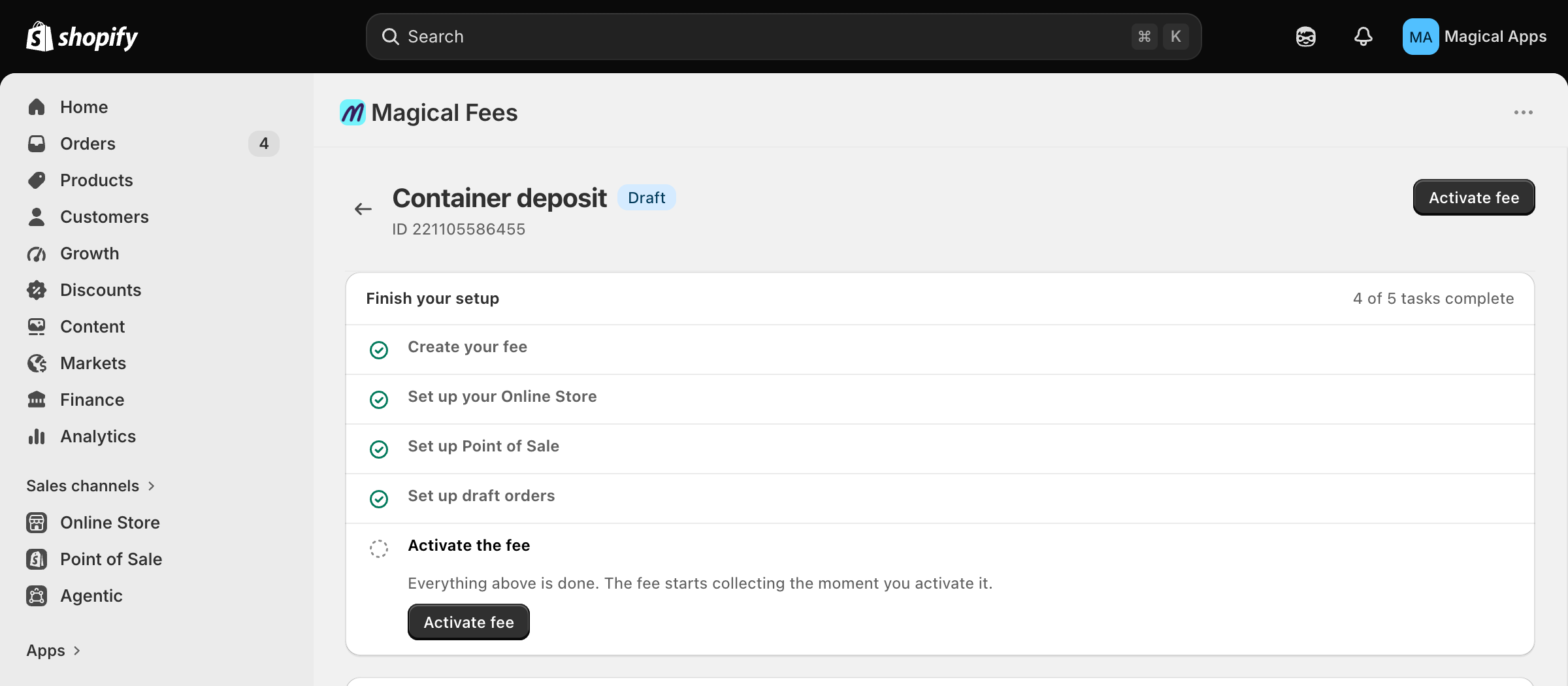
Templates can only charge where the app is set up to charge. If a channel the fee uses isn't ready yet, the button reads Create fee instead of Activate, and the fee is created as a Draft with a Finish your setup checklist:
- Enable in theme editor opens a short how-to, then takes you to the theme editor with the Magical Fees app embed already selected. Turn it on and save; the task checks itself off.
- Add POS tile shows you where to add the Magical Fees tile on your POS register. The task completes when the tile first reports in.
- Turn on draft-order fees takes you to Sales channels.
Don't sell on a channel? Click Skip this channel. When the checklist is done, click Activate fee.
Step 5: Check where it works
Every fee has a Where it works card listing each sales channel:
- No setup needed or a green row means the channel is ready.
- Setup required means the channel is selected but something is still off; the button next to it takes you to the fix.
- Preview shows a mockup of the fee in the consent popup, on POS, or on a draft order.
- Once a real order carries the fee, the row reads Seen live on order #1042 with the time. That is the app confirming the fee actually charged, not just that it's configured.

Editing a template fee later
Open the fee from the Fees list. It opens as a summary of what it does and where it works. Click Customize this fee to expand the full editor. Template caveats (surcharge rules, program fine print) sit under Worth knowing on the fee's page.
Amounts change
Jurisdictions adjust amounts on a schedule (Colorado every July, most stewardship programs annually). We track those dates and update the templates, but a fee you've already created keeps the amount it was created with. When a rate changes, open the fee and update the amount, or activate the template again and retire the old fee.
Related
Always label deposits separately for compliance
Display bottle deposit fees as a clearly labeled, separate line item at checkout and on receipts. This meets regulatory transparency requirements, builds customer trust by showing exactly what they're paying, and makes it significantly easier to track deposits for reporting and audits. Use a clear label like "Bottle deposit" or "Container deposit (CRV)" so customers immediately understand the charge.