Quick Answer
Missing apartment numbers or PO Box addresses often cause failed deliveries and extra support work for Shopify merchants. Shopify can only make Address Line 2 *required *for everyone or optional for everyone, which either adds checkout friction or lets incomplete addresses through. An address validation app like Address Ninja lets you check for missing unit numbers and block PO Boxes automatically without hurting checkout conversion.
Require Complete Addresses on Shopify Without Hurting Conversion
Missing unit numbers and PO Boxes cause preventable delivery failures
When apartment or suite numbers are missing, shipments are often flagged as “insufficient address” and returned to sender. PO Boxes cause similar issues, and can also break fulfillment when carriers cannot deliver certain products or shipping methods to them.
These problems are usually caught after checkout, when fulfillment has already started, which then snowballs into reships, refunds, delays, and extra support work.
Without address rules at checkout, the same issues continue to surface on future orders, turning preventable delays into an ongoing customer experience risk.
Shopify’s address settings are too blunt for real-world shipping rules
Shopify only lets you make Address Line 2 required for everyone or optional for everyone, with no way to enforce unit numbers only when they are actually needed.
There is also no native setting to block or restrict PO Boxes at checkout.
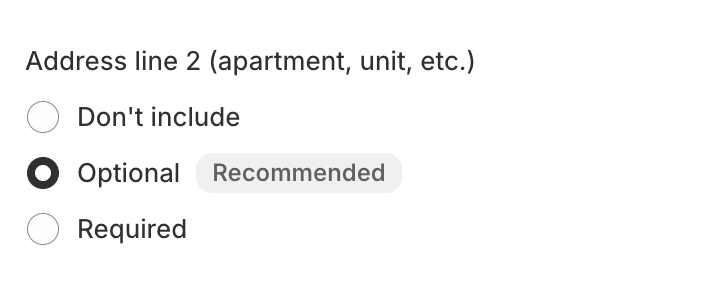
Using Address Ninja lets you apply conditional address rules at checkout. It checks what the customer enters in Address Line 2 and can block checkout when an address appears to require an apartment or suite number but none is provided. PO Boxes can also be blocked entirely before the order is placed.
You can try Address Ninja free for 14 days to confirm the rules work correctly for your store before committing.
How to Capture More Apartment and Suite Numbers at Checkout
Missing apartment or suite numbers are a common culprit for failed deliveries.
When an apartment or suite number is missing, the carrier won’t know where to deliver the package. The shipment is usually flagged as “insufficient address” or “verify address”, held at a local depot, and eventually marked Return to Sender if the address cannot be confirmed.
For merchants, that means:
- Added reshipping costs (often paid by the merchant)- Longer delivery times for the customer- More customer support back-and-forth- Extra admin work managing failed deliveries
Why Shopify makes apartment and suite numbers optional by default
In Shopify, apartment and suite details live in Address Line 2. Shopify allows this field to be set as either optional or required, but that single toggle creates a tradeoff.
If Address Line 2 is required, customers who live in houses are forced to enter something they don’t need, which can feel confusing and hurt conversion.
If Address Line 2 is optional, customers in apartments can skip it entirely, allowing incomplete addresses to slip through.
If you search the Shopify Community, you’ll see this question come up again and again:
How do I prevent customers from skipping apartment or suite numbers?
The answer is almost always to make Address Line 2 required, but this blunt approach creates new problems by adding friction for customers who don’t need to enter a unit number, while still failing to handle apartment addresses intelligently.
The practical middle ground: enforce unit numbers only when needed
For most stores, the most practical approach is to leave Address Line 2 optional and use an app like Address Ninja to enforce rules when an address appears to require a unit number, but none is present.
Instead of forcing every customer to fill in Address Line 2, this approach:
- Allows house addresses to check out normally- Flags or blocks checkout when an address looks like an apartment or suite but is missing a unit number- Significantly reduces incomplete addresses without hurting conversion
An app like Address Ninja will let you apply conditional logic at checkout, so customers are prompted or blocked only when their address is likely incomplete.
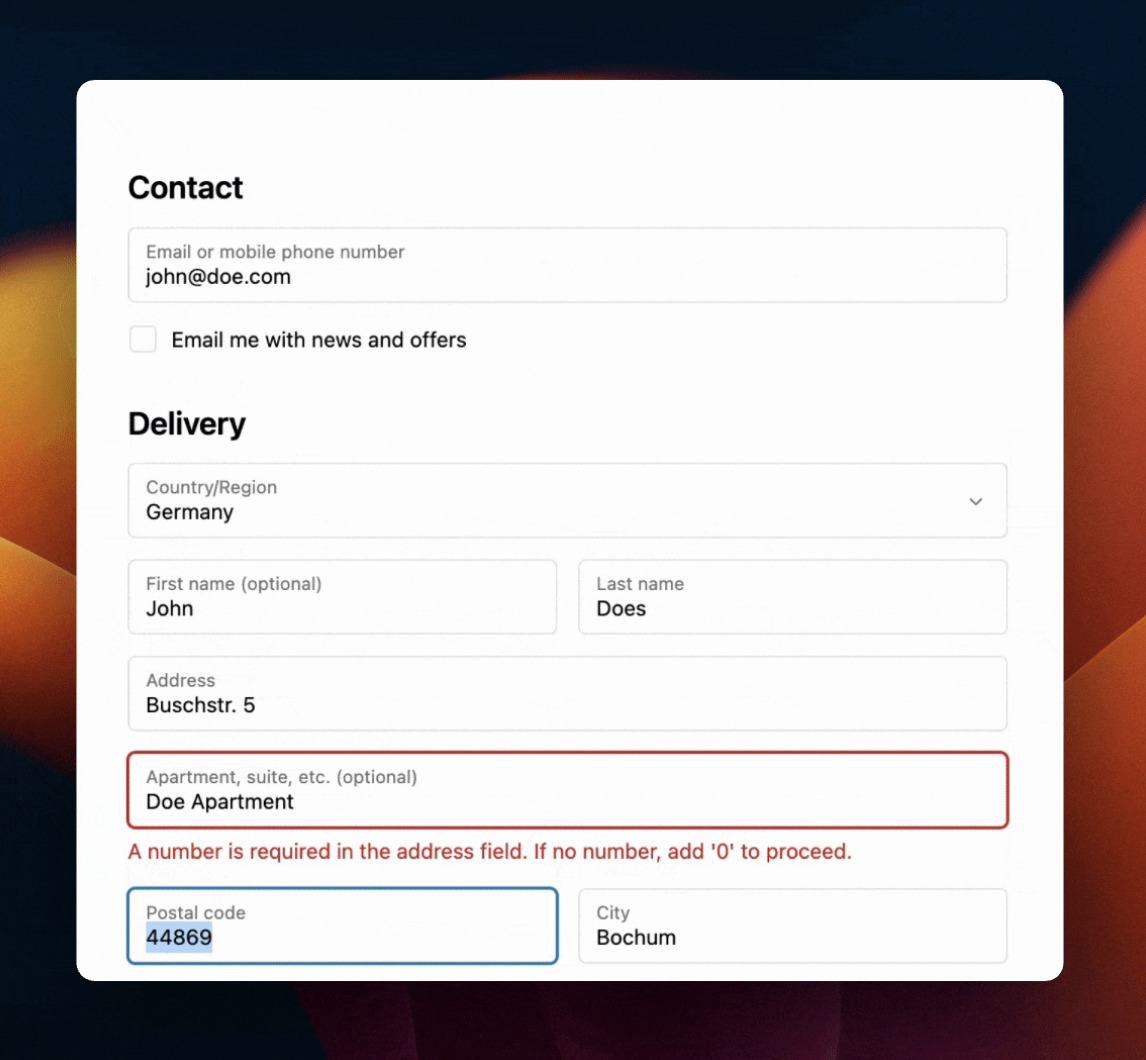
Add helper text at checkout to remind customers
You can add a short reminder near the address fields in Shopify by going to Settings > Checkout > Checkout language, and editing the address field labels or helper text. This works on any plan and can remind customers to include an apartment or suite number, but it’s informational only and can’t enforce complete addresses.
Block or Restrict PO Boxes at Checkout
I work with merchants every day who use our apps to fix problems or clean up workflows in their Shopify stores, and PO Boxes are one of the most common address issues I see.
The main problem is that many carriers simply can’t deliver certain shipments to PO Boxes. Oversized items, expedited shipping methods, and some product categories are either rejected outright or downgraded once the shipment is processed. In some cases, the label can’t be purchased at all. In others, the package is delayed or eventually returned to sender.
PO Boxes also tend to carry a higher fraud risk, especially for high-value products, which is why many merchants choose to block them entirely.
Why Shopify doesn’t block PO Boxes by default
Shopify does not include a native setting to block PO Box addresses at checkout. Address fields are intentionally flexible to support global address formats, and Shopify does not attempt to interpret or restrict address content by default.
As a result, merchants who need to disallow PO Boxes have to figure out ways to do their own checks, often across multiple stages of the checkout and fulfillment process:
Pre-checkout (before the customer reaches checkout)
Some merchants try to catch PO Boxes early by adding a shipping address form on the cart page, often in the guise of a shipping rate calculator. This can warn customers before checkout, but it requires custom theme work and still doesn’t guarantee the address won’t change later.
At checkout (the most reliable point)
To block PO Boxes during checkout, merchants typically need:
- An app that can validate addresses in real time, or- Shopify Plus with checkout customization, or- A custom Shopify Functions implementation
Shopify does offer a delivery customization function that can hide delivery options for PO Box addresses, but implementing and maintaining this logic on your own can be complex. It also requires accounting for many variations of PO Box formatting, such as “PO Box,” “P.O. Box,” or simply “Box,” or incomplete variations.
This is where an address rules app like Address Ninja is most effective. It checks addresses as the customer enters them and can block or restrict PO Boxes immediately, before the order is placed and sent to fulfillment.
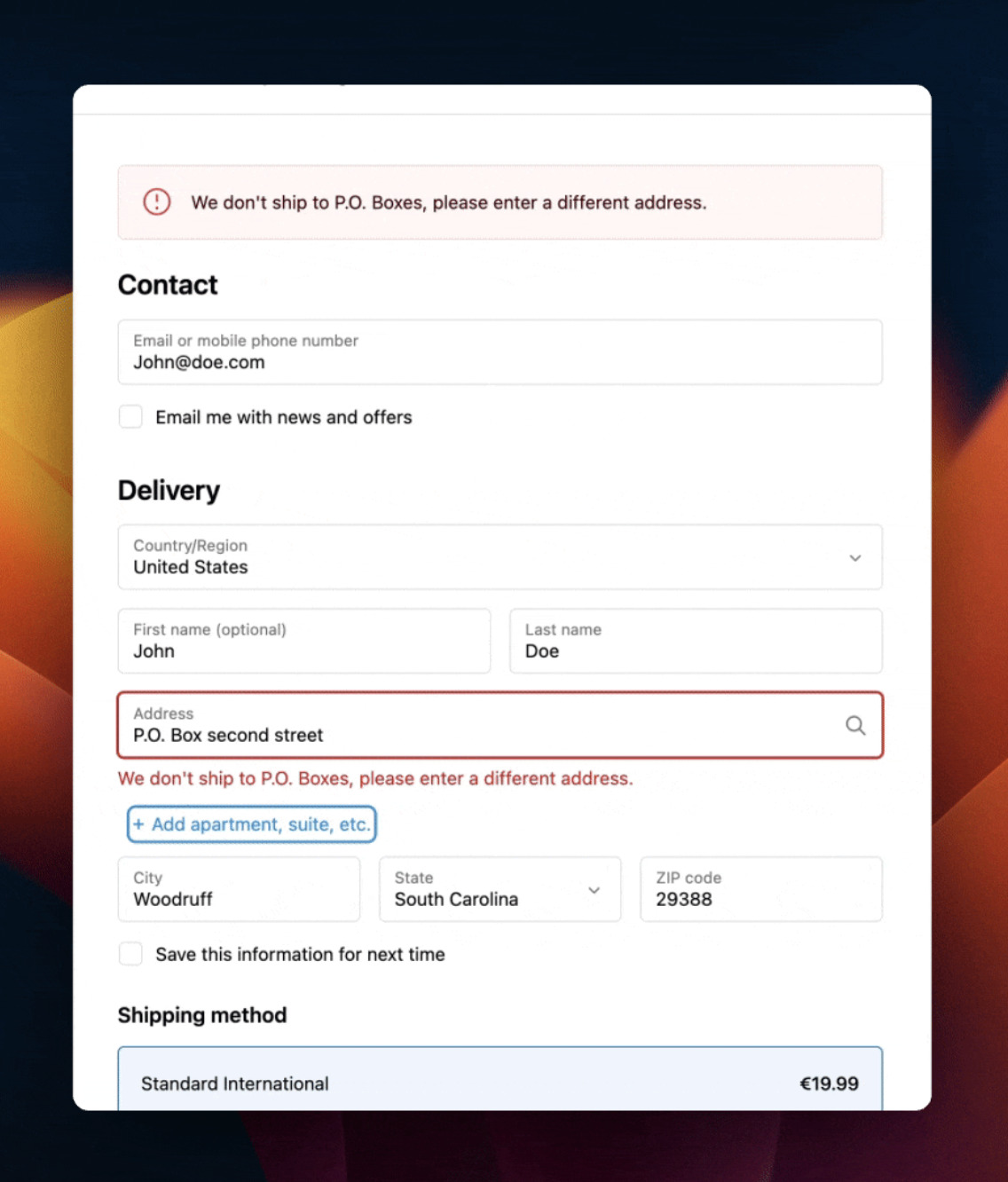
Post-checkout (after the order is placed)
Some merchants attempt to catch PO Boxes after checkout using Shopify Flow, fraud filters, or manual review. While this can stop fulfillment, it happens too late to prevent customer frustration, refunds, or operational overhead. At this point, the order already exists and must be managed manually.
Why blocking PO Boxes at checkout matters
Catching PO Boxes after an order is placed turns a preventable issue into an operational problem. Blocking or restricting PO Boxes at checkout prevents fulfillment failures before they happen, reduces fraud risk, and keeps shipping workflows clean.
Address Ninja
The Address Ninja app helps Shopify merchants capture complete, accurate addresses at checkout by enforcing smart rules for apartment numbers, address line details, and PO Boxes.