Quick Answer: What’s the Best Way to Add a Credit Card Processing Fee on Shopify?
Shopify does not have a built-in way to add a credit card processing fee based on payment method. The easiest way to recover the 1.5%–3.5% you lose on card transactions is to use an app like Magical Product Fees to automatically add a small, clearly labeled surcharge at checkout whenever a customer pays with a credit card. In doing so, you’ll protect your margins while keeping pricing transparent and compliant with card network rules.
Watch*: How to Add Credit Card Surcharges on Shopify (44-second video)*
Detailed Answer: How to Set Up a Credit Card Surcharge on Shopify With Magical Product Fees
Why credit card surcharges matter for your Shopify store
Every time a customer pays by credit card, processing fees usually take 1.5%–3.5% of the order total. On higher-ticket items and tight-margin products, that quiet loss adds up quickly. Many merchants want a simple, fair way to pass part of this cost on when a customer chooses to pay with a card, instead of absorbing it on every order.
Why manual workarounds cause problems
Shopify does not let you add a surcharge directly based on payment method, which pushes merchants toward workarounds. You might try:
- Raising product prices to cover card fees- Adding extra charges into shipping- Manually adjusting orders
These approaches either make you look more expensive than competitors, only apply in some situations, or introduce manual steps that are easy to forget. They can also create confusion for customers who do not understand why prices or shipping seem higher, and they do not clearly show that the amount is related to card processing.
A simple way to add surcharges by payment method
Magical Product Fees gives you a cleaner way to handle credit card surcharges on Shopify. You decide how much to charge and when it should apply, and the app:
- Adds a fixed or percentage-based fee only when customers pay by credit card- Shows the fee as a separate, clearly labeled line in the order summary at checkout- Keeps your base prices and shipping rates clean, so you do not need to rewrite your catalog just to recover card costs
This lets you recover processing fees in a transparent way that is easier to explain to customers and easier to keep aligned with card network and payment provider rules.
3 steps to add a credit card surcharge on Shopify
1. Install Magical Product Fees
Install Magical Product Fees on your Shopify store. The free trial gives you time to configure your surcharge and test how it appears before you commit.
2. Create a rule for credit card payments
In the app, create a new fee rule and choose the **Order **Fee type. Set your fee (for example, 3 percent), and under Payment Methods, select the credit card option so the surcharge only applies when customers pay by card.
3. Test and confirm the surcharge at checkout
Save** **and activate the rule, then place a test order to make sure the processing fee appears as a separate line in the order summary at checkout. Once it looks right, keep it active and the app will apply the surcharge automatically on every eligible order.
Supporting Answers
How Do I Add Credit Card Surcharge Fees on Shopify?
Shopify does not have a built-in way to add credit card processing fees to orders. The best way to do this is by using an app like Magical Product Fees, which allows merchants to add fixed or percentage-based fees automatically.
With Magical Product Fees, you can:
- Apply fixed or percentage-based surcharges on credit card payments.- Ensure fees are clearly displayed at checkout for full transparency.- Set fees based on order subtotal or order total (order-total fees require the Plus plan with Shopify Plus).
Some merchants attempt workarounds, but they come with trade-offs:
- You could raise product prices**,** but this makes products look more expensive than competitors.- You could add fees to shipping, but this only applies to orders that require shipping, leaving gaps.
Neither approach is as accurate, seamless, or transparent as Magical Product Fees for directly applying surcharges.
Why Add Credit Card Processing Fees on Shopify?
Merchants may choose to add surcharges to offset various costs:
- Transaction fees can range from 1.5% to 3.5%, cutting into profit margins when customers pay with credit cards.- Administrative costs increase due to the extra work required for handling chargebacks and reconciling payments.- Delayed fund availability from credit card payments can create cash flow challenges for businesses needing immediate access to funds.- Lower processing fees from alternative payment methods can be encouraged by adding a credit card surcharge.
Is It Legal to Add a Credit Card Processing Fee on Shopify?
Yes, you can add credit card surcharges on Shopify in most regions as long as the fee is clearly disclosed and applied fairly. A few U.S. states (Connecticut, Maine, and Massachusetts) restrict surcharges for in-person retail, but these laws are generally not enforced for online stores.
Laws are constantly changing so you should check with your state on what’s required. A good rule of thumb is to keep things transparent:
- Ask customers to consent to the fee before payment (for example, with an “Accept” button).
- Display the fee clearly at checkout and on receipts.
Using an app like Magical Product Fees makes this simple. It automatically labels and displays the fee at checkout and it displays a pop-up that requires customers to consent to the fee. You can even use location settings to waive fees in areas where surcharges are restricted.
Card Network and Payment Provider Rules (2025 Update)
Visa, Mastercard, and PayPal all permit merchants to add credit card surcharges, but the rules differ by country. Most require that:
- The fee be clearly disclosed before payment.- The surcharge not exceed the actual cost of accepting the card (typically 2-4%).- The fee appear as a separate line item on receipts and invoices.
Because these policies vary internationally, it’s best to check your payment provider’s merchant agreement or Shopify Payments Terms of Service for your country before enabling surcharges.
How to Disclose Fees at Checkout
Since Shopify and credit card providers require merchants to disclose fees at checkout, it’s best to use an app that clearly separates the surcharge from the rest of the order. This helps customers understand exactly what they’re paying for and prevents confusion.
When you use an app like Magical Product Fees, you can set a title and short description that appear directly in the order summary. For example:
Credit Card Processing Fee. A 3% surcharge is applied to cover credit card processing costs.
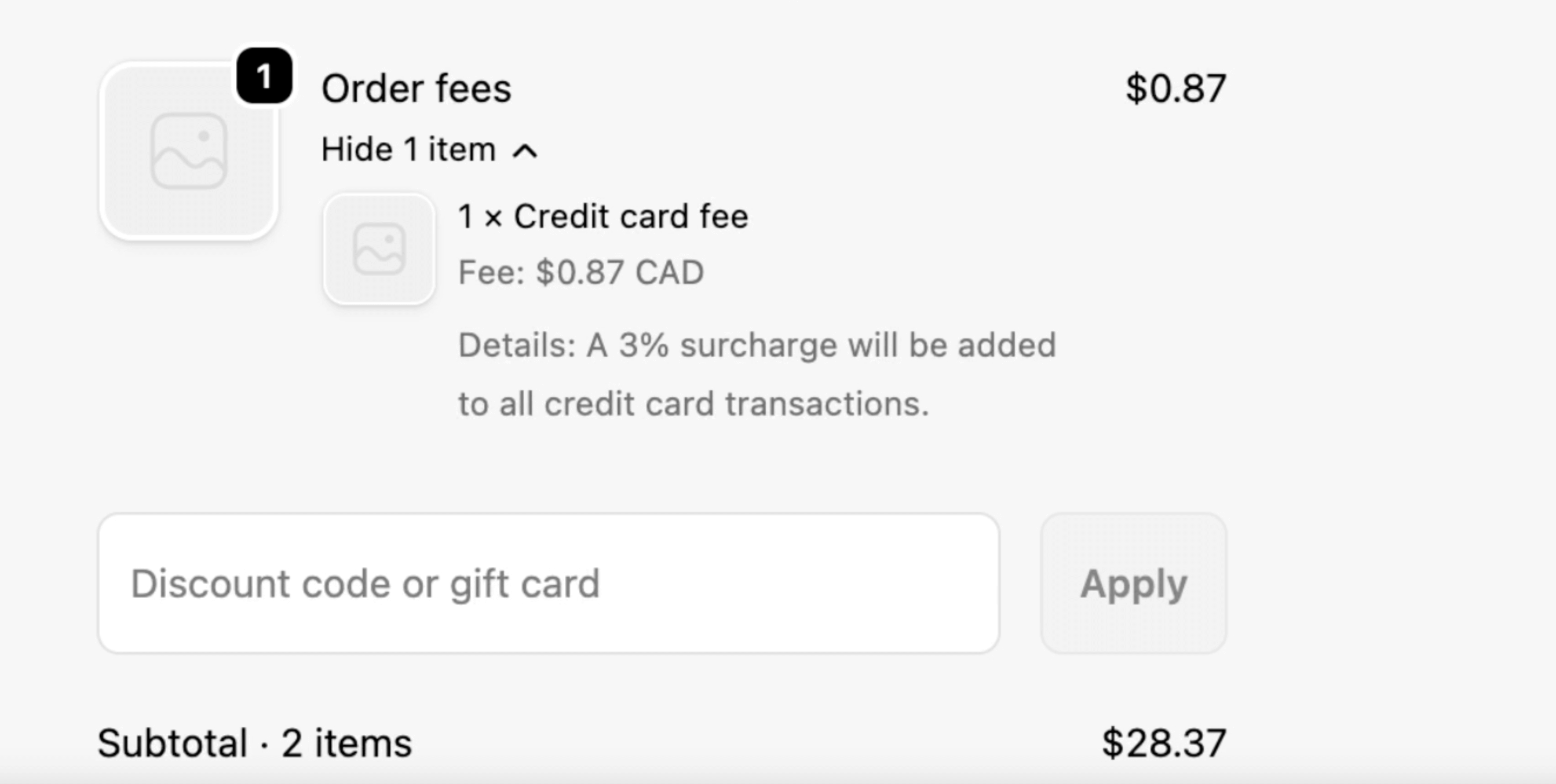
Displaying the fee like this will help you stay compliant, reduce disputes, and build customer trust, all while recovering the costs of credit card payments automatically.
Real-Life Experience
“I’ve built over 250 Shopify stores, from simple storefronts to complex builds. There is no native way to add credit card surcharges. In my expert opinion, the best way to add extra charges for credit cards is through the use of a third-party app.”– John Speed, Shopify app expert
Always label deposits separately for compliance
Display bottle deposit fees as a clearly labeled, separate line item at checkout and on receipts. This meets regulatory transparency requirements, builds customer trust by showing exactly what they're paying, and makes it significantly easier to track deposits for reporting and audits. Use a clear label like "Bottle deposit" or "Container deposit (CRV)" so customers immediately understand the charge.