In Make an Offer V2, you can accept one offer request or accept several requests together.
Accept one offer request
- Open Offers in the app.
- Open an offer request with Review or Countered status.
- Click Accept.
- Review the offer and edit the email subject or message if needed.
- Click Send to accept the offer and send the customer a checkout link.
Accept several offer requests
- Open Offers and select the requests you want to accept.
- Click Accept offer requests.
- Review the selection, then click Accept.
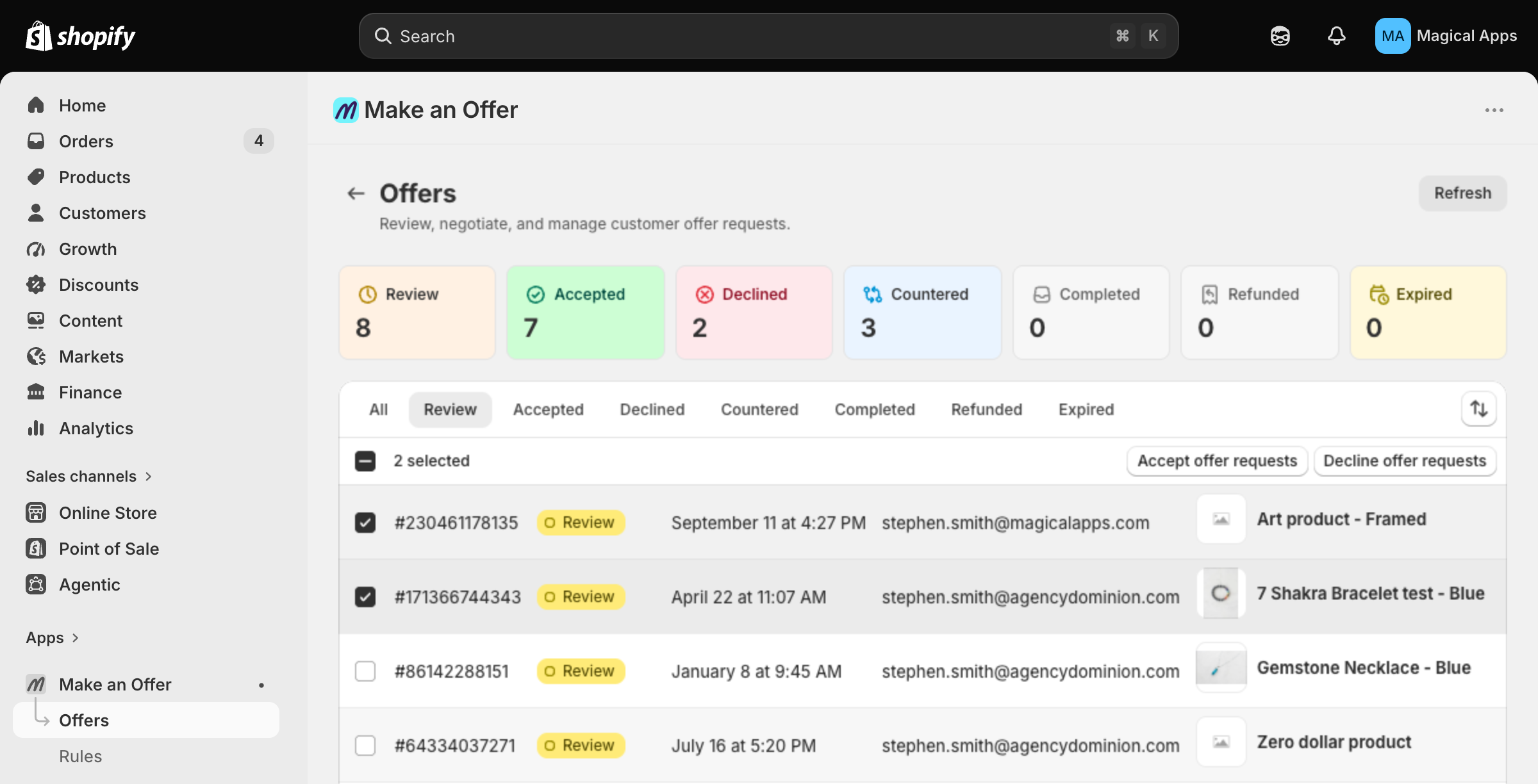
Only offer requests with Review or Countered status can change. Select all applies to eligible requests in the current view, up to 250 per run. Resolved requests are skipped. On a phone, open the selection actions menu to find the bulk actions.
Each accepted request uses its own offer amount and sends your saved Accepted email with a checkout link. Edit that template on Email Notifications before starting the run. Open a request individually if you need to personalize its email.
The app shows progress while it works. Stop ends the run after the current batch; it does not undo completed changes. Check the result for skipped requests, failures, or email warnings before taking further action.
An accepted offer is not a completed sale. The customer must use the checkout link and complete payment.
Legacy Version (V1)
Open Offers, find the offer, and click Accept. The customer receives an email with a checkout link. Bulk review applies to V2.
Originally from our Help Center